Category Archives: Mac

Reset Apple Wireless Keyboard

If you’re like me and countless fellow Mac users that needed to reset their wireless keyboard, just to run into a lengthy process of research and frustration, well then you know what I’m talking about.

It’s completely inexcusable that such a simple, yet highly demanded task is poorly documented by Apple. After all, it appears that besides using a wireless device on more than one mac, users also seem to face issues with sudden connectivity problems at random.

The steps for resetting the wireless keyboard are really simple, just follow along:

  1. Turn off the keyboard, better yet remove the batteries
  2. Click the bluetooth icon in the upper toolbar, then select “Set Up Bluetooth Device”
  3. When the Bluetooth Set Up Assistance is up and start searching for devices
  4. Insert the batteries and HOLD the power button, do NOT let go
  5. Your keyboard should now appear in the assistant
  6. Select the keyboard from the list and click continue, while still holding the power button
  7. Once you get the pairing code, let go of the power button and type in the code.

Your keyboard should now be paired and working. The trick is to hold down the power button during the entire process, simple yet rarely documented.

Tweak User Interface In OS X Lion

OS X LionThe user interface changes of Apple’s new operating system, Lion, are obvious to experienced Mac users. But some of the changes might have you scratching your head, when you don’t for example see traditional scroll bars, the mailbox and folder list, or large enough icons in the Finder sidebar.

You might also be annoyed by the new “reverse scrolling” feature, and the reappearance of that ping sound when you receive new mail messages. Plus, you may be wondering what the “Arrange” button and the extra items in the Finder sidebar are all about.

If you’re a veteran Mac user, you probably have figured out how to change a few things in Lion to get them back the way you like. But if you’re still confused, read on. Read more »

Best Free Beat Making Software

Beat Making Software Beat Making can be a great way to earn money and build a career in the music industry. Up to now, you only had a couple of options when it came to selecting a beat maker.

The first was to pay a high price for high priced high end equipment.  The other option was to get affordable software that you could afford, but made beats that sounded like crap.
Read more »

Firefox Extensions For Web Developers

Firefox LogoWith the release of Firefox version 4 last week, we thought it’s time for a fresh list of most powerful Firefox extensions for web developers. Even though couple of our mentions are not yet compatible with this latest release, we’re convinced they’ll be available in no time.

While release 4 also includes some HTML 5 enhancements, we like to see some new extensions to help developers with canvas, forms, local storage and other new features in the future.

In case, we mean just in case you don’t have Firefox yet, you can get it here.

FireBug

Javascript debugger, live DOM & CSS inspector and so much more. The de-facto single greatest web developer add-on for Firefox.

Web Developer Toolbar

Another great developer tool and addition to FireBug, adds a toolbar with powerful web developer tools at your fingertips.

Live HTTP Headers

As you browse, view live HTTP headers of any page loading in real time.

ColorZilla

An advanced eyedropper, color picker, page zoomer and various colorful goodies.
Read more »

Install ffmpeg on Mac Snow Leopard

WebmFfmpeg is the de-facto open source standard for encoding audio and video. Especially with the arrival of html5 which uses codecs like Ogg, Theora, Vorbis, h264, webm among others, and the increasing popularity of devices from Apple, such as iPod, iPad and the iPhone, all of which require a different standard from flv, the version so widely in use by Adobe Flash.

Another positive aspect is that ffmpeg has a much revived developer group, posed to enhance the application on a much faster pace than it has been in recent years.

Installation on Linux systems is really straight forward, especially on common distro’s like Ubunty and Fedora. On a Mac, we will have to build it from source (if you’re not a fan of ports like me), including encoder/decoders we plan to use. Here is the breakdown to get ffmpeg installed on a Mac running Snow Leopard.

Install Git

If you don’t have Git installed, download the Git installer here, install the package and run the script in the source of the mounted image. CVS is included in XCode and that is located on the snow leopard installation disc.

Install LAME (latest version from cvs)

cd ~
cvs -d:pserver:anonymous@lame.cvs.sourceforge.net:/cvsroot/lame login
(at the password prompt, press Enter)
cvs -z3 -d:pserver:anonymous@lame.cvs.sourceforge.net:/cvsroot/lame co -P lame
cd lame
./configure
make
sudo make install

Read more »

Create Your Own Folders On The iPad

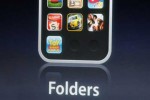
iPad FoldersQuick intro for creating folders on an iPad

Creating our own folders to organize files has always been on top of the wish list for the iPad. With iOS 4.2  we finally have the capability of creating desktop folders to store applications, photos, videos or any other content.

In addition, creating folders on the iPad is an easy way to limit the number of screens we have to scroll through when searching for a file or an application.

Create the folder

Create a new folder by tapping and holding down any of the application icons that you want to organize into a folder. Hold it until the icon starts wiggling.

Drag it

Drag the icon on top of any other icon which you want to include in your folder. This will cause the home screen on your iPad to fade. A folder display will appear containing both of the application icons which you touched. Read more »

How To Clone A Virtual Machine In VirtualBox

Moving, cloning and modifying Virtual Machines and their associated Virtual Hard Disks in VirtualBox has been no easy task and to make matters worse, are poorly documented at best. In this guide, we’re using VirtualBox 3.2.10 r66523 running on Ubuntu 10.10 64bit host operation system.

Merge Snapshots

Merge all snapshots that we want to be included, delete the ones we don’t want. Unless we do this, we only get the base version and loose all changes contained in those snapshots.

Run VBoxManage

Using VBoxManage clonevdi to copy the virtual hard disk to a new VDI file. The basic syntax is: VBoxManage fullPathTooldVdiFile fullPathTonewVdiFile. We need to ensure that a hard disk with that name does not already exist, otherwise we’ll get errors.
VBoxManage clonevdi /data/VirtualMachines/Windows7.vdi /data/VirtualMachines/Windows7_clone.vdi

Add Disk To Virtual Media Manager

We’ll add the new created hard disk to the Virtual Media Manager. This step ensures that the hard disk has been properly cloned, has the proper permissions and that there are no conflicts with other disks and virtual machines. In VirtualBox, select File -> Virtual Media Manager -> Add and select the cloned file, in our case Windows7_clone.vdi. If there are no errors, we should now see the hard disk listed among the others and are ready to proceed with the new Virtual Machine.

Create new Virtual Machine

In VirtualBox, select Machine -> New  and proceed with the steps to create a new Virtual Machine. At the point we we select a hard disk, click existing and select our new disk.
Start up the new Virtual Machine and change hostname in /etc/hostname and eventually the network configuration in /etc/network/interfaces.

Fix for Mac OS 10.6.5 apachectl: line 82: ulimit

Mac OS 10.6.5 + apachectl: /usr/sbin/apachectl: line 82: ulimit: open files: cannot modify limit: Invalid argument

After the upgrade to Mac OS 10.6.5 a bug seem to have snuck in where apachectl tries to re-set ulimit to unlimited. The error appears as such:

/usr/sbin/apachectl: line 82: ulimit: open files: cannot modify limit: Invalid argument

While apachectl was working flawless before the upgrade to Mac OS 10.6.5, I suspected the two were related. After a quick search into what the update entailed, I found that Apple upgraded to Apache 2.2.15, which in turn patched a number of vulnerabilities. As it turned out, one of those changes broke the apachectl script.

Referring to line 82 of apachectl, the shell script was referring to the ULIMIT_MAX_FILES variable that was trying to set to unlimited, which read:

ULIMIT_MAX_FILES="ulimit -S -n `ulimit -H -n`"

Changing the line as follows fixed the problem:

ULIMIT_MAX_FILES="ulimit -S -n 1024"

Should you be running a high amount of vhosts or do some testing that requires a significant amount of file descriptors, set this number higher accordingly.

Setup Puppet to configure your network servers

Growing companies at some point are faced with the increased workload to setup, configure and maintain their servers and applications. Administrators try to script repetitive tasks and ultimately look for solutions that are scalable and provide a central management tool base. There are several software packages available, commercial and open source ones.

Puppet is probably the most used open source configuration management package available today and more system administrators and software developers are interested in setting it up within their environment. An excellent book about Puppet (Pulling Strings with Puppet) is available and so are numerous online articles and tutorials. However, lots of online resources are just not quite complete and can lead to lots of frustration, especially in the setup and configuration of Puppet.

So here is another step by step tutorial about how to install and setup Puppet to the point where we can run a simple recipe residing on the server (puppetmaster) and execute on the client. For this illustration we’ll install Puppet on Ubuntu 10.10 using a deb package.

Configure Network and DNS

Setting up configure hostnames on server and client is crucial. Since Puppet uses self signed certificates to secure communication, it’s essential that network is setup properly and hostnames are configured with fully qualified domain names.

Let’s open /etc/hosts and add the necessary entries. (note: If you use a DNS server in your network, those setting changes should be made on your DNS server and not the hosts file)

 Read more »

HTML5 Open Source Framework for iPad E-books

Baker FrameworkThe Baker E-book Framework is a free, open-source platform to create e-books for the iPad. The framework was developed by a team of Italian software geeks, allowing designers and web developers to transform fixed-width HTML5 pages into an e-book format and subsequently publish the finished product. All publishers have to do is follow the Apple App Store submission guidelines.

The first step involves creating a HTML5 version of your book with fixed width of 768 pixels that works and looks fine using Safari in iPad or via downloadable support CSS at Baker’s site. Keep all files in a flat directory called book and name the html files according to their page number (eg. 1.html, 2.html ….) which is the HPub format. The naming convention is still somewhat strict, but that will change over the next few releases.

Finally download the Baker Framework and follow the simple instructions contained in the readme.txt file:

  • Rename the Xcode project
  • Include your book
  • Include your icon
  • Follow the App Store submission instructions

You can check out a sample book created by the Baker folks, 5×15 Tokyo.

Casali and his team hope their creation will lead to more beautiful e-books and digital magazines on the iPad, and for other WebKit-enabled devices later.

You can download the Baker Framework files at the official site, and you can also join the project itself on GitHub.

Mac OS X 10.7 Lion – The Latest And Greatest?

Mac OS X LionInvites went out this week for “Back to the Mac”, an event happening on October 20, which includes a sneak peek of the future version of Mac OS X.

Whether 10.7 is a completely revamped OS or just an extension to 10.6 remains to be seen, however if one considers the minor progression of Leopard (10.5) to Snow Leopard (10.6), which was more like a revision than a version, then the designation of “Lion” (10.7) should bring a lot of powerful changes. We’re excited!

Apple started using wild cats as nicknames for the release of OS X. 10.0 was named “Cheetah”, 10.1 became “Puma”, 10.2 was “Jaguar”, 10.3 was “Panther”, 10.4 was “Tiger”, 10.5 was “Leopard” and the latest version, 10.6 is named “Snow Leopard”. These were internal code names at Apple, which as we all know became a successful marketing strategy for the OS X. And at this point it looks like OS X 10.7 will be named “Lion”.

Install and configure Puppet Client on Ubuntu 10.10

After we have configured our network and installed, configured and verified our Puppet Server (puppetmaster), it’s now time to install our first puppet client and configure it to receive a signed certificate and puppet recipes. If you haven’t performed those pre-requisite setups, please start with Setup Puppet to configure your servers.

Let’s first install puppet from the ubuntu package:

# apt-get install puppet

Then we start our client

# puppetd –server puppet-server01.example.com –verbose  –waitforcert 60

A peak at /var/log/syslog confirms our request for a certificate: Creating a new SSL certificate request for puppet-client01.example.com
And the same log on the server should contain: puppet-master[617]: puppet-client01.example.com has a waiting certificate request

If this state on the server is confirmed, it’s time to sign the certificate on the server:

# puppetca –list (and again we should see the hostname of our client that has requested the cert)

# puppetca –sign puppet-client01.example.com

We should get confirmation as such: notice: Signed certificate request for puppet-client01.nextpt.com. Anything else or errors will likely point towards network and/or dns configuration issues.

If you have followed our tutorial on how to setup puppetmaster, you should now have htop installed on your client. Also check /var/log/syslog for additional info.

Finally we should enable puppet to start on reboot. We do this by editing /etc/default/puppet and set START=yes.

Burn vob Files To DVD On Mac / Linux

If you’ve got some .vob files and wonder how to get those onto a DVD and actually play it on your DVD player, you may get or already have some strange results.
The files might just be listed on the DVD, without the disc actually playing the movie as a DVD, or the disc may play the first vob section, then the second has no sound. And there is a plethora of issues and scenarios, just not the one you were expecting.

There are multiple ways to do it right and to achieve what you want. Here are two distinct ones:

1) Get a program called Roxio Toast 10 Titanium and click on create DVD. Then simply drag your files from left to right, follow the instructions and hit “Burn”. That’s it, it’s that easy if you can fork out $75.-. And the program can do much more than just that, check it out.

2) Save some money, have fun (maybe) and learn in the process.

- Hop on the terminal of you Mac and ensure that you have hdiutil. Type hdiutil info and you’ll know what version you have, which should be close to framework 283.

- Create an ISO which you can then burn to the DVD:  hdiutil makehybrid -udf -udf-volume-name DVD -o DVD Directory_of_DVD where DVD is the name of the iso file. This can take several minutes, depending on the length and size of your movie and the speed of your Mac.

- Mount the iso on your Mac by double clicking it and verify that it works as intended.

- Unmount it and burn it to DVD with Disk Utility or your favorite burner.

Hot To Install Memcache And PHP Client On Mac Snow Leopard

I recently installed the memcached daemon on my MacBook Pro, incuding the necessary PHP client for development purposes. I just prefer to work locally instead of using a VM running Linux. And the process is actually quite simple and straight forward. Please note, I have included both clients, the old standard one and the newer PECL extension, because I deal with different applications and also lots of people seems to get confused when they install one version and their memcache classes cannot get instantiated and throw errors. So, if in doubt, just install both.

These are the five (four if you know which extension you want) components needed:

- libevent (requred library for memcached)

- memcached daemon

- libmemcached (required library for the php client)

- php extension (standard)

- php extension (PECL)

Now open your terminal and off we go: Read more »

How To Install Snow Leopard From USB

Ever been without a DVD/CDROM or installation disk?  Especially MacBook Air users undoubtedly come across this situation. This article will explain how to install Snow Leopard from an external device such as USB or disk drive.

You will need an appropriately sized external drive or USB Flash Drive, as the Snow Leopard install DVD’s size is about 6.2 gigabytes. An 8GB USB stick like the SanDisk Cruzer 8GB is the perfect choice.

Now let’s plug in that USB stick and get started.

1. Start up Disk Utility and select your Flash Drive from the left side pane.

2. Select the Erase tab and set Format to Mac OS Extended (Journaled). It should be the first choice in the list. Set Name to Snow Leopard or OS X Install so you can easily keep track of it. Before you the Erase button, be sure that you copied any files or folders from the Flash Drive that you want to keep, as everything will get erased. You’ve been warned! Hit Erase. Read more »

Page 1 of 212