Tag Archives: grub

How To Clean Up The New Ubuntu Grub2 Boot Menu

Clean Up And Modify he new Ubuntu Grub2 boot menu differs quite a bit from the previous version. As Ubuntu nominated the new version 2 of the Grub boot manager as of 9.10, removing of the old problematic menu.lst file.

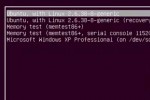
Ubuntu Grub2 Boot Menu

Ubuntu Grub2 Boot Menu

Grub2 is a leap forward in many ways, and most of the annoyances from menu.lst are gone. Yet, if you don’t clean up old versions of kernel entries, the boot list can quickly get messy and end up in a long list of nonsense. Let’s assume we want to remove the 2.6.32-21-generic boot menu entries. Previously, this meant editing /boot/grub/menu.lst. But with Grub2, we use the package manager to remove the kernel package from our computer, Grub automatically removes those options. Btw. if only one operating system is installed on your computer, you may not see the boot menu at all and have to hold down the SHIFT button on your keyboard while booting up to get the menu to show.

To remove old kernel versions, open up Synaptic Package Manager, found in the System > Administration menu. When Synaptic opens up, type the kernel version that you want to remove into the Quick search text field. The first few numbers should suffice. Then for each of the entries associated with the outdated kernel (e.g. linux-headers-2.6.32-21 and linux-image-2.6.32-21-generic), right-click and choose “Mark for Complete Removal”, then hit “Apply”. These entries will be gone upon the next boot. Read more »

How to recover a lost Linux root password

Forgot your root password? Nice going. What now? Reinstall the machine from ground up? Sadly enough, I’ve seen this happening all too often while it’s surprisingly easy to change the password knowing the correct procedure. While this doesn’t work in all cases (like if you secured your machine with a GRUB password and forgot that as well), but here’s the procedure in case of a CentOS Linux machine.

Start off by rebooting your system. At the GRUB boot loader screen, move the highlighted entry with the arrow keys to interrupt the boot process. While the current boot entry is highlighted, press E and you can edit the kernel line.

Grub boot loader screen

Grub boot loader screen

Use the arrow key to highlight the line that starts with kernel, and press E to edit the kernel parameters. When you get to the screen below, append the number 1 at the end of the line. This will enable you to boot into single-user mode.

Edit GRUB boot loader entry

Edit GRUB boot loader entry

Next press Enter, then B, and the kernel will boot up into single-user mode. Once there you can run the passwd command, changing the password for user root:

prod-093# passwd
New UNIX password:
Retype new UNIX password:
passwd: all authentication tokens updated successfully

Next time you boot up, use your newly created password to login.

Dual Boot Ubuntu 9.04 and Vista

…with Windows Vista / Windows 7 installed first.

So you got a computer running Vista and like to dual boot between Vista and Ubuntu. The boot loader that ships with Vista can be a real pain. There are some nice utilities we can use to make that process a lot smoother for us. Here we go.

First you’ll need space for the Ubuntu installation. If you don’t already have a partition for it, right-click My Computer -> Manage -> Disk Management. Right-click on the main Vista partition and select Shrink Volume. The Shrink tool will assess how much space you can free up. (If you don’t have enough free space, Vista will not allow you to shrink it and the available space to shrink will be zero) You should have at least 12GB of free space for the new OS, if you don’t have that much it’s probably time for a new hard drive.

Read more »

Install Ubuntu 9.04 / 8.10 without CD or USB

I rarely do upgrades and try to avoid them whenever possible, instead do always fresh installs as I like to do  house-cleaning when upgrading to a new version of OS. As I have a separate /home partition, this doesn’t affect any of my settings and only takes 1-2 hours (less than one hour on a high speed Internet connection),  which is comparable to the upgrade option from within 7.xx.


What is UNetbootin?
UNetbootin creates a boot option in GRUB or the Windows bootloader that will download the installation files directly over the Internet and starts the installation. I find this very attractive since I don’t have to download or burn any CD’s. It works from within Windows and Linux and a variety of distro’s can be installed this way besides Ubuntu. The process is more than ideal with the new generation of netbooks, like the Dell mini, Asus EEE just to name a few, which don’t have optical drives.

Read more »